Hercules - DJControl T10
MIXER & EFFECTS CONTROLS
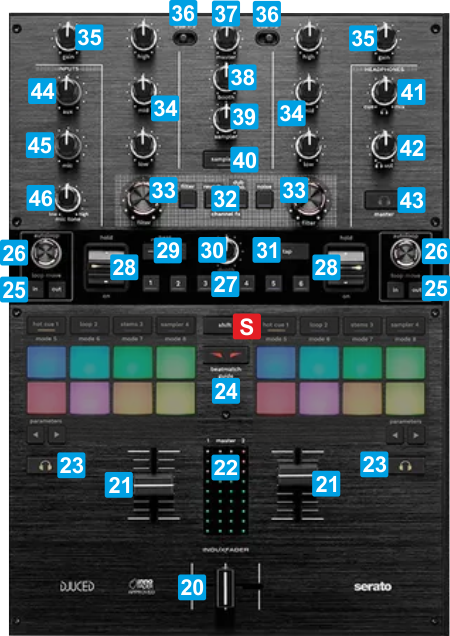
KEY
ACTION
20 CROSSFADERWhen on far left position, only sound from the left deck will be heard from the Master Output. When at far right position, only the sound of the right deck will be heard from the Master Output. In all other positions, the audio signals from left/right decks will be blend. 21 VOLUMEAdjust the Volume of the Left/Right deck22 VU METERSThe left and right-side series of leds indicate the pre-fader output level of Left/Right Deck,. The 2 middle series of leds indicate the output level of the Master Output assuming the Master Out channels of the T10 are used as Master in VirtualDJ Audio Setup..23 PFLUse these buttons to send the pre-fader audio signal of the Left/Right deck to the Headphones channel for pre-listening (connection at the front side).
Hold SHIFT and then use these buttons to toggle Mixer EQ knobs between Frequency and Stems mode. When a Mixer Channel (Deck) is set to Stems , the led of the PFL button will blink when SHIFT is pressed. Read more at https://virtualdj.com/manuals/virtualdj/interface/mixer/audio.html 24 BEATMATCH GUIDEWhen enabled, several assistant leds on the Decks will guide you for a perfect beat-match25 LOOP IN/OUTLOOP IN
When not in loop, press to set current position as the beginning of a manual loop. Press and hold this button for more than 1 second to turn a 4 beats auto-loop on/off. When in Loop, press to set the Platter to Loop In Adjust mode and then use the platter to fine-adjust the Loop In position.
LOOP OUT
When not in loop, press to set current position as the end of a manual loop.
When in Loop, press to set the Platter to Loop Out Adjust mode and then use the platter to fine-adjust the Loop Out position.
26 LOOP ENCTurn to half/double the size of the loop. Push to turn the loop on/off.
If in Loop, turn to move the loop backwards/forward in time by the amount of the selected beats of the loop. When not in loop skip the Track by the same amount backwards/forward27 FX ARMThese represent 6 FX Slots in VirtualDJ. When any of these buttons are enabled, the Effect selected to FX slots will be armed and then can be applied to the Left/Right Decks with the FX ON paddles. The Effects of the FX Slots can be selected from the GUI of VirtualDJ
The selection can be "single" (default) or "multi. See the availble setting at T10-Settings28 FX ON PADDLEHold down (temporary) or push up (toggle) to apply the armed FX slots to the Left/Right Decks29 FX BEATSIncrease/decrease the amount of Beats (usually the 2nd Parameter) of the armed Effect slots.30 FX DEPTHAdjust the 1st Parameter (usually the Wet/Dry) of the armed Effect Slots31 FX TAPNot used in VirtualDJ Mapping 32 FILTERUse these 4 buttons to select one of the pre-assigned Color FXs (High/Low-Pass Filter by default) for Left/Right deck, and then use the FILTER knob [33] to apply. 33 FILTERApply the selected Color FX (High/Low-Pass Filter by default) to Left/Right deck. No ColorFX is applied (off) when the knob is at the center/middle position. 34 EQ HIGH/MID/LOW3-Band Equalizer. Use these knobs to cut/boost the frequencies of the Low(Bass) / Mid (Middle)/ High (Treble) Equalizer Band or the Stems Levels depending on the selected EQ mode.35 GAINUse these knobs to adjust the pre-fader output level of the Left/Right deck When the knob is at the middle/center position, the track will be at zero dB level (or any other value set in VirtualDJ Options)36 USB SOURCESet the switcher to either A or B position depending on the rear-panel USB connection to control the VirtualDJ Decks on a computer. When set to the other USB Source, the Decks on the current USB source will display "MUTE (IN USE)"37 * Master VOLAdjust the level of the Master Output (connection at the rear panel).38 * BOOTH VOLAdjust the level of the Booth Output (connection at the rear panel). Note that the Booth Output is not part of the USB Audio Interface, so caanot be added to the Audio Setup of VirtualDJ as it is a copy of the hardware Master Output with its own dedicated level.39 Sampler VOLAdjust the level of the VirtualDJ Sampler output.40 Sampler FXWhen enabled, the Armed FX Slots will apply to the Sampler Output, using either of the FX Paddles41 * HEADPHONES MIXBlends the signal from the Deck or Master PFL and the Master Output in Headphones.42 * HEADPHONES VOLAdjusts the level of the Headphones Output (connection at the front panel).43 * Master PFLSends the audio signal from the Master Output to the Headphones channel. Hardware operation, not visible in GUI or controlled from VirtualDJ44 ** AUX VOLAdjusts the level of the Aux Input (connection at the rear panel).45 ** MIC VOLAdjusts the level of the Microphone Input (connection at the rear panel).46 ** MIC TONEAdjusts the Tone level of the Microphone Input (connection at the rear panel).Notes* These buttons/knobs offer Hardware operations, but may reflect their movements and status on the VirtualDJ GUI (fake mode) and should not be assigned to any other function.
** These knobs offer Hardware operations and should not be assigned to any VDJ script action. They apply to the Microphone/AUX inputs of the device, before sent to
Master or USB Audio Interface.


