- Guía Rápida
- Carátula
- Sección Superior
- Decks
- Mixer
- Navegador
- Base de Datos
- Separación de Pistas (Stems) 2.0
- Editores
- Configuración
- Control Remoto de VirtualDJ
- Apendice


Manual del Usuario
Visuales
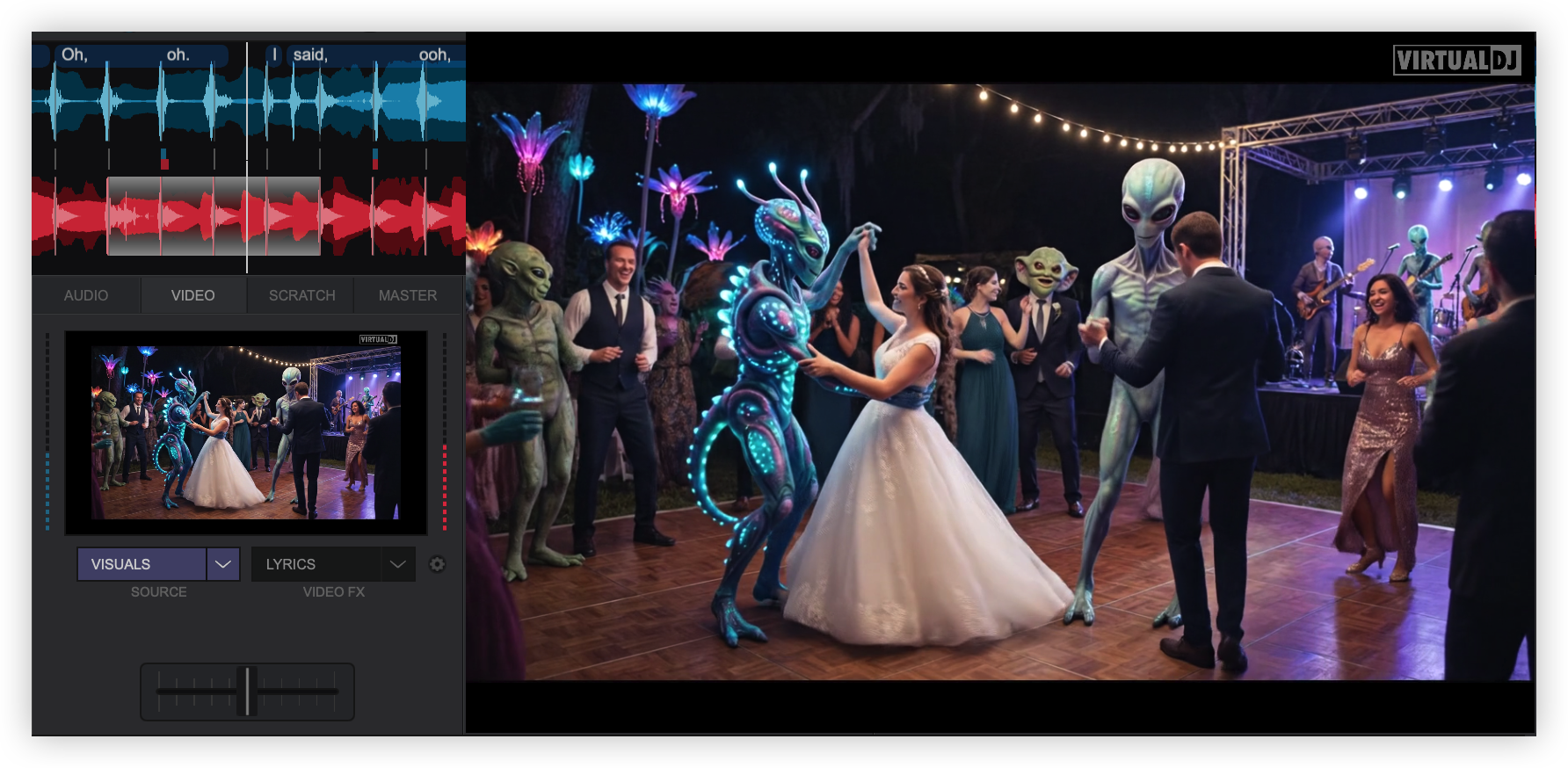
Visuals provide the ability to display AI video Loops and audio-reactive patterns on the Master video output that move with the music in real time. Visual content can be downloaded from a user-created library or created within VirtualDJ.
USING VISUALS
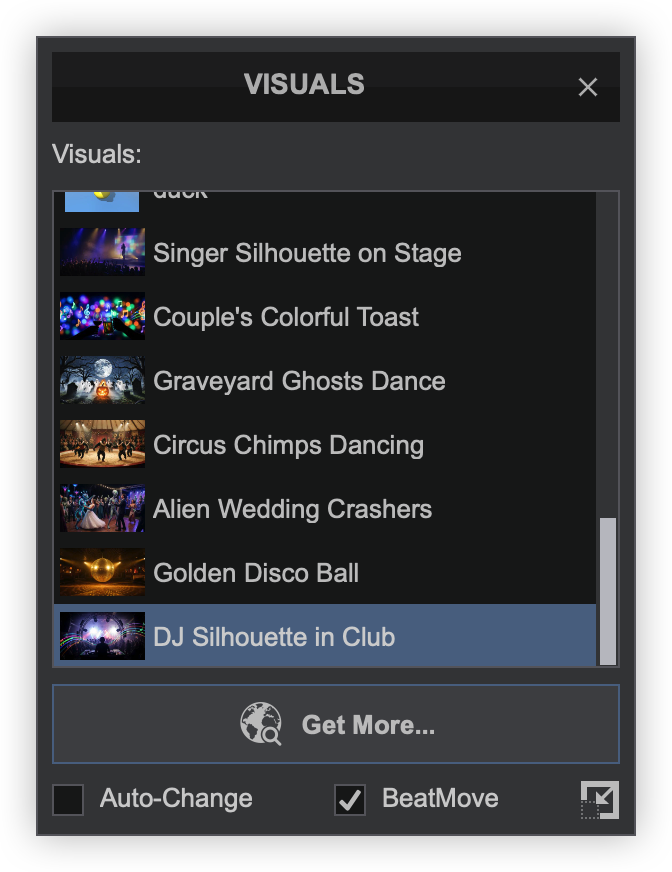
Select the icon to the right of the Visuals plugin.
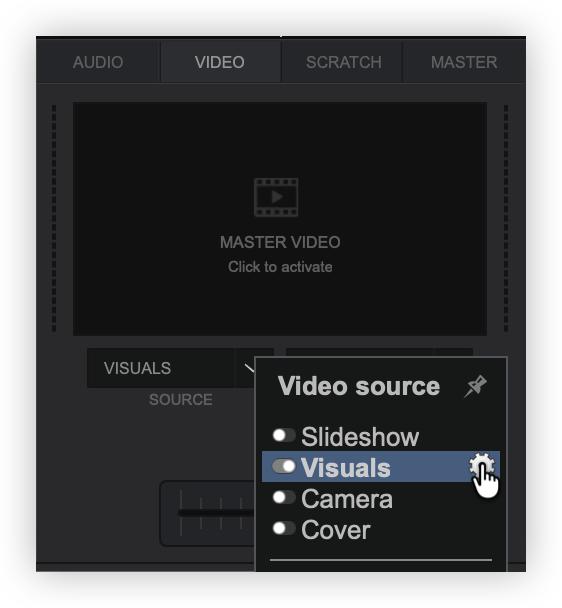
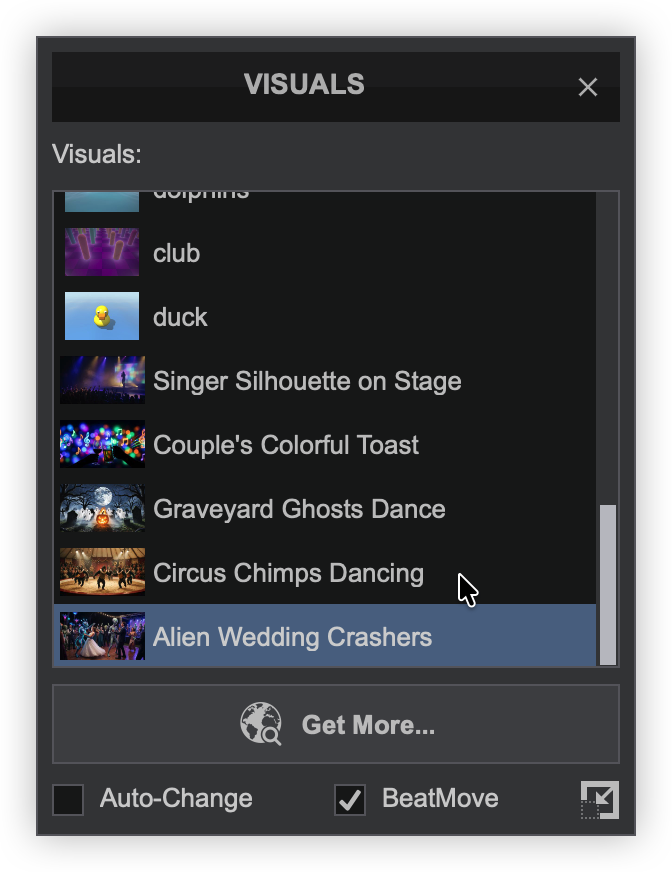
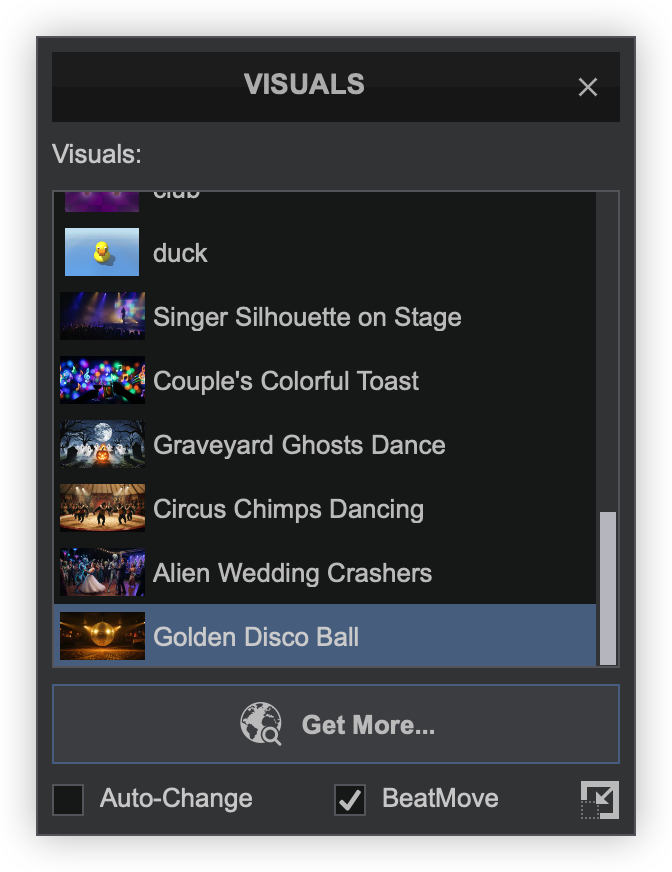
Options at the bottom of the menu can be checked/unchecked to provide additional functionality:
Auto-Change - Visuals that have been installed will rotate automatically.
BeatMove - Visuals will react to the beat of the Master deck.
Postion - Provides the ability to resize and position the visual on the Master video output.
DOWNLOADING VISUALS

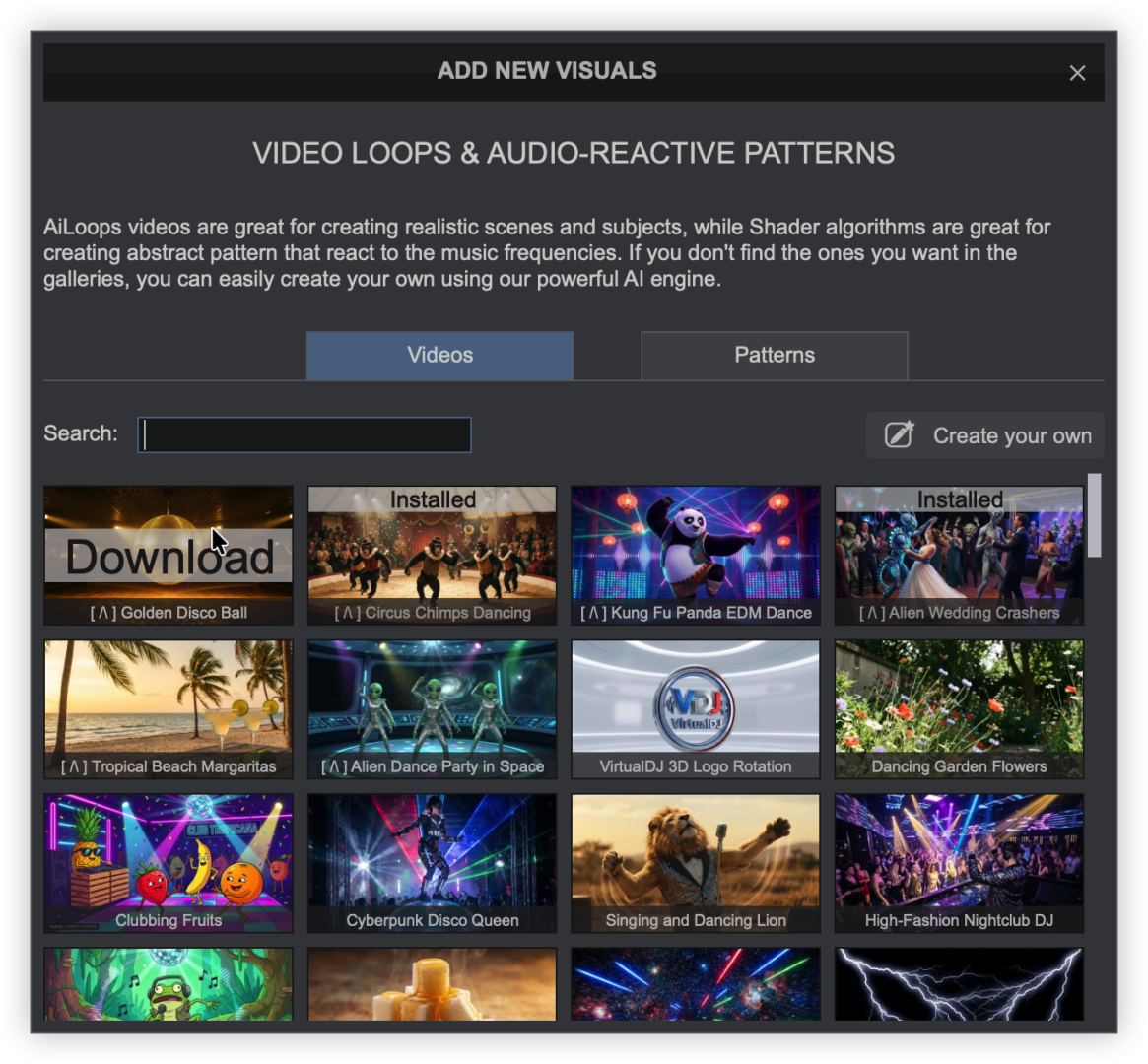
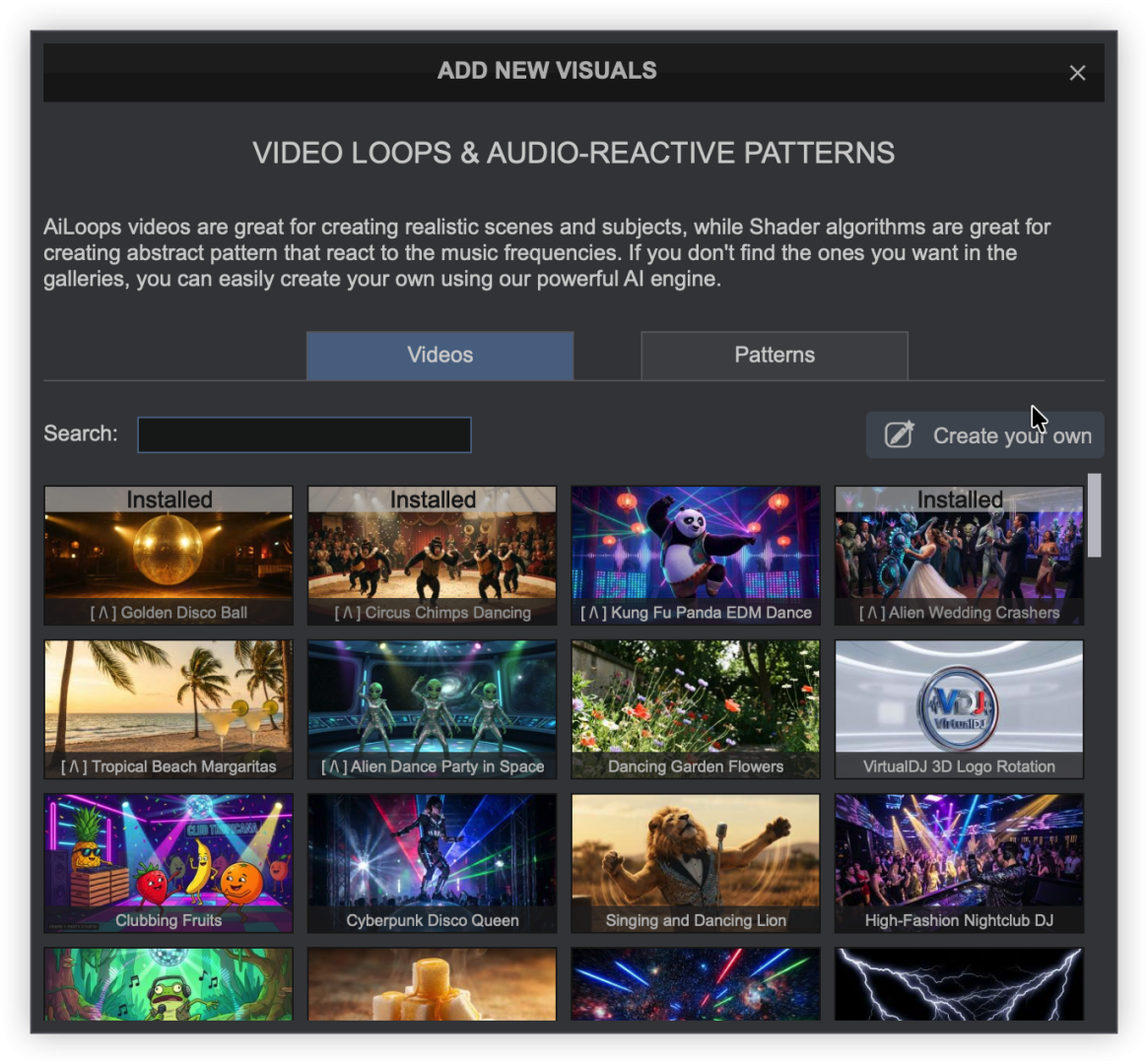
Use the search bar to find something specific, or scroll through the gallery to see what is already available.
Hover over a thumbnail to select for download. Visuals already installed will display that they are already available in your library.
CREATING VISUALS
Click generate when you are happy with the description.
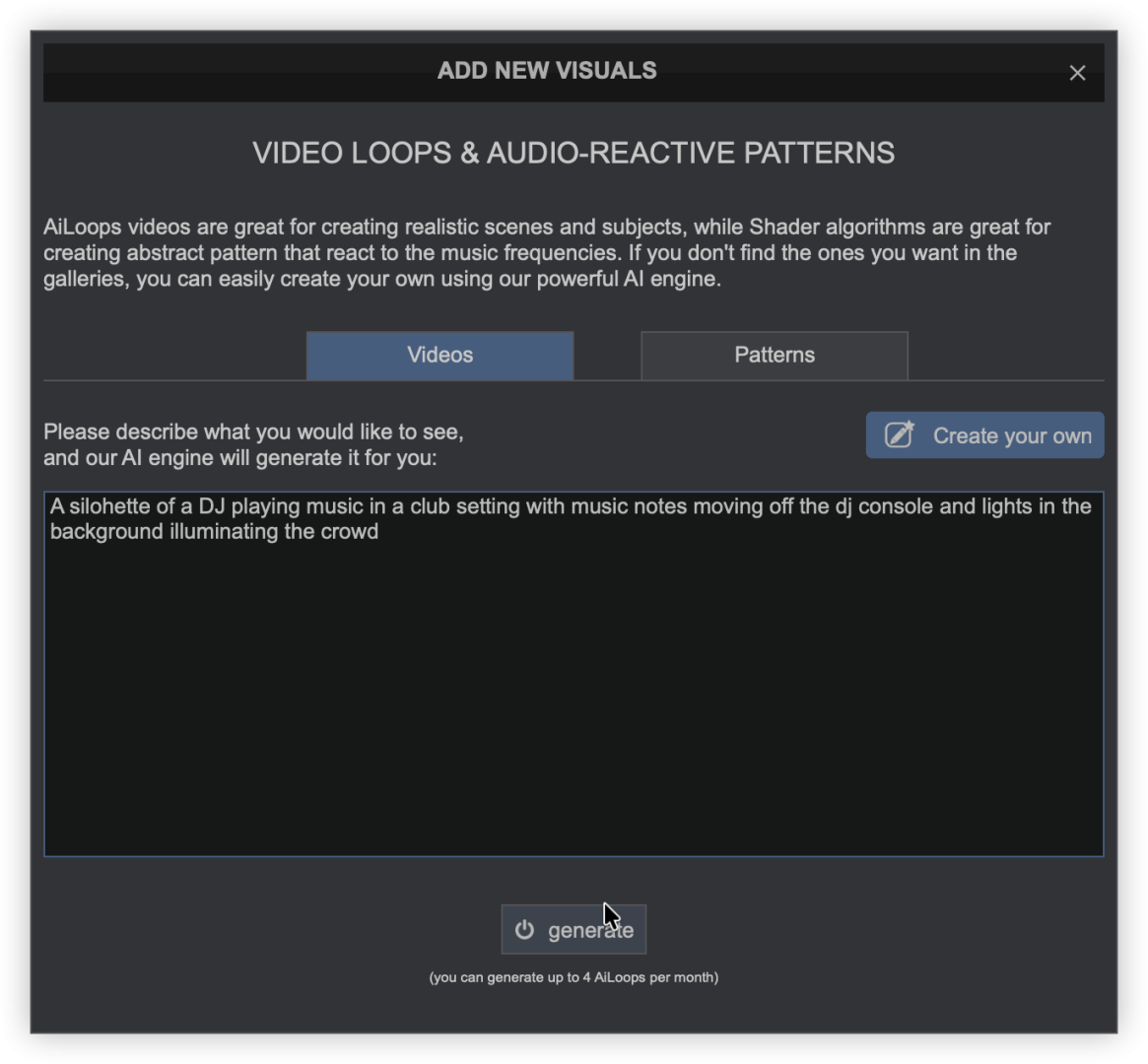
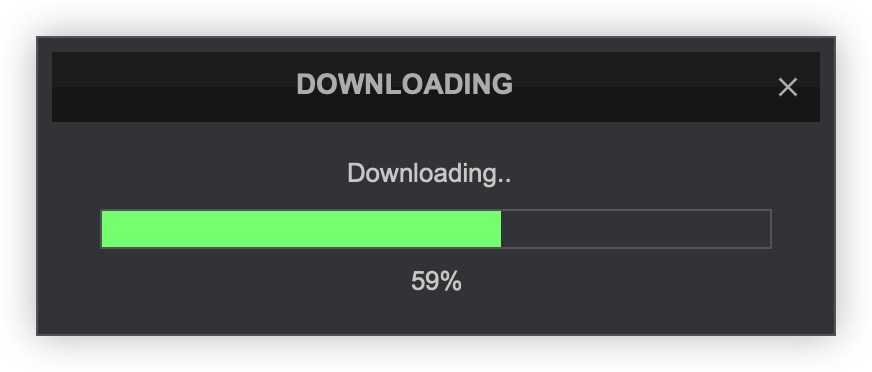
The process will go 3 phases: Thinking, Generating (which will display a thumbnail of your creation), and Downloading.
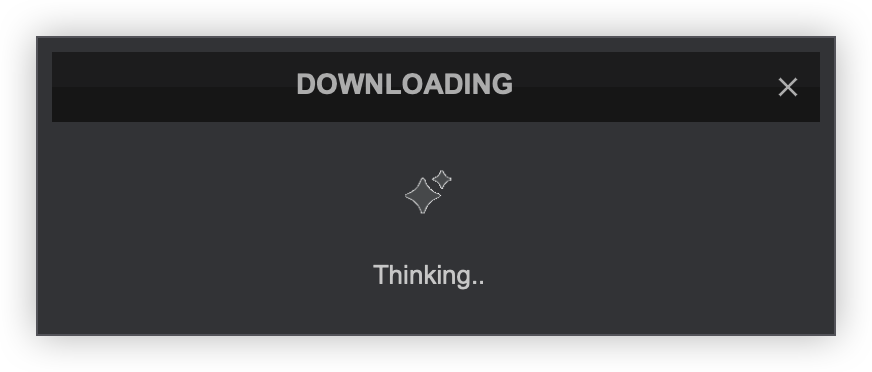
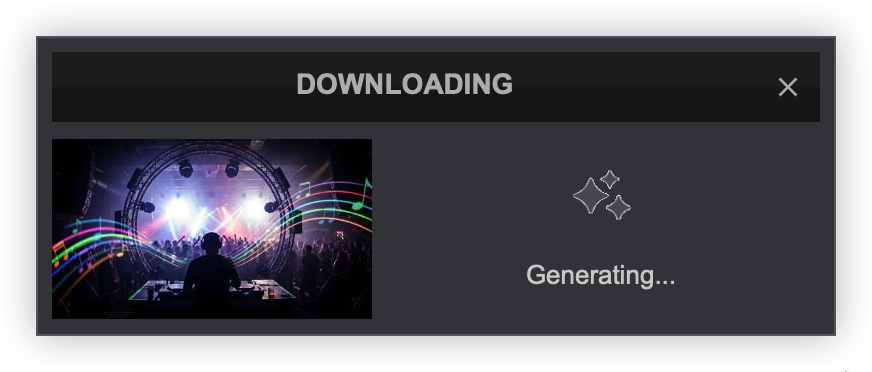
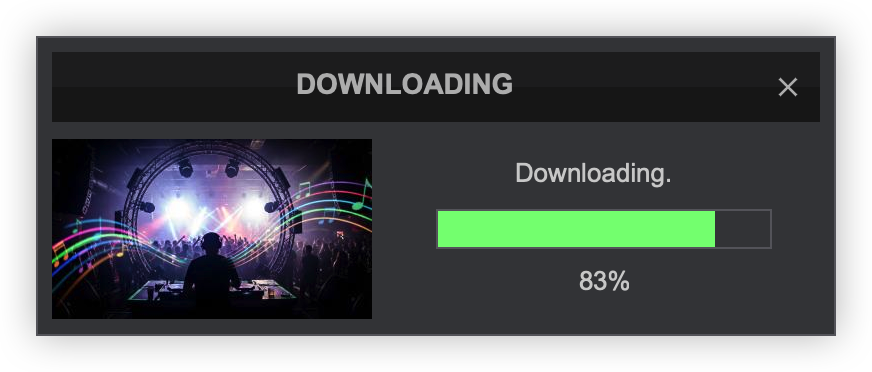
Once downloading is complete, it will be installed automatically. The new Visual will be named and displayed at the bottom of the Visuals menu.
Visuals can be re-arranged by dragging and dropping them into any position in this menu.
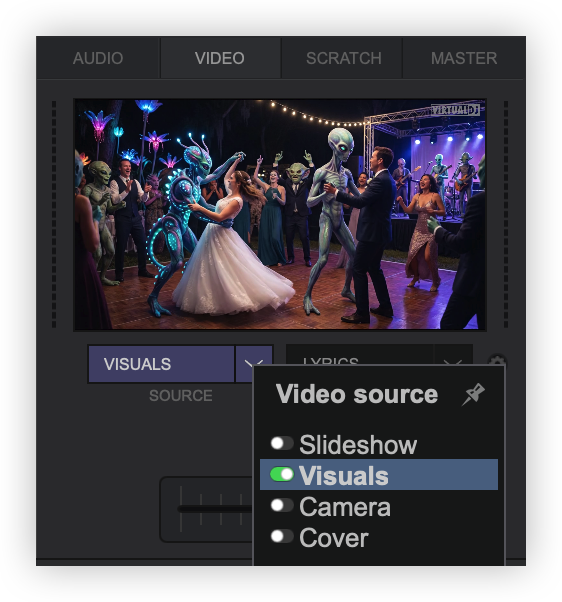
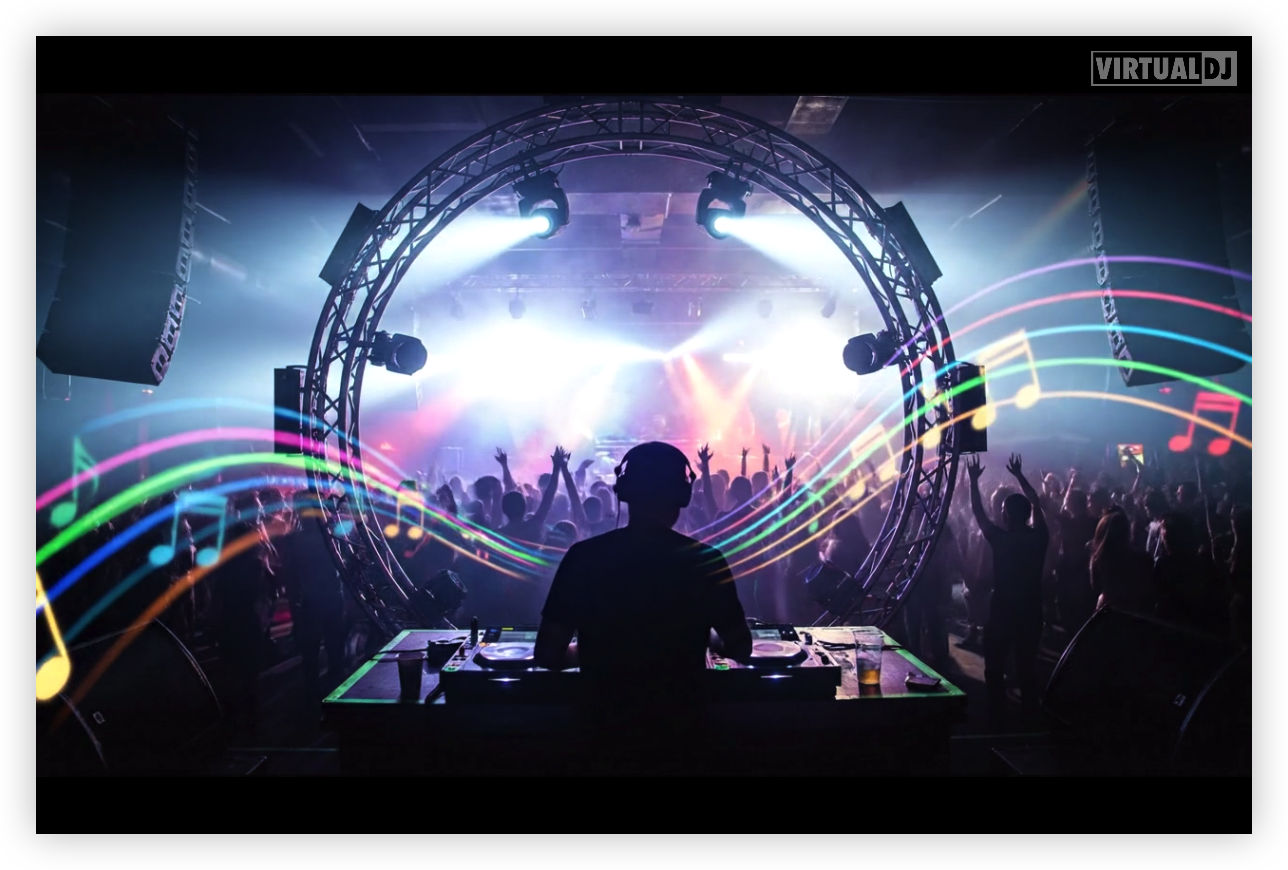
Once selected from the Visuals main menu, the new creation will be displayed on the Master video output.
* AIVideo Loop creation is limited to 4 successful generations per month for PRO users. Additional credits can be purchased once there are no available credits left to use.